Teacher Support

Para español, haga clic aquí.

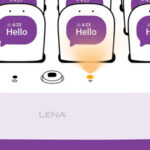
Illustration of several white devices with screens displaying purple speech bubbles saying “Hello” and a time of 4:23. A small orange light is illuminated on the front panel, with “LENA” written below.

Dock blinking yellow?

You need to connect it to your site’s Wi-Fi. Install the LENA Wi-Fi Connector on a mobile device to configure.

Set Up LENA Tech

Swipe or click through the slides below. Complete each step as you go.
Slide 1
Slide 2
Slide 3
Slide 4
Slide 5
Slide 6
Slide 7
Slide 8
Slide 9
Slide 10

LENA Days

Follow the steps for a successful LENA Day. Video showing steps below.
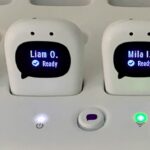
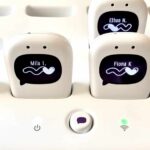
A LENA charging station holding four small devices labeled with the names Yara H., Liam O., Mila I., and Sofia R., each showing a “Ready” status on their screens.

1. Wake devices

Press the dock button to light up device screens. Each device with a name should say “Ready.” 

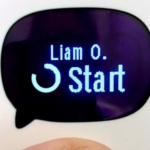
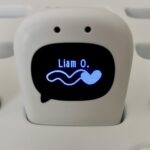
A handheld device screen displaying the name “Liam O.” above a loading icon and the word “Start.”

2. Start recording

When a child arrives, press the back button and hold for 5 seconds until the ring fills. When the timer is going you know the device is recording.

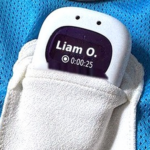
A white wearable tracking device displaying the name “Liam O.” and a timer reading “0:00:25” tucked into a white fabric pocket on a blue athletic shirt.

3. Put on, leave on

Insert device (screen out) into vest. Put on child.

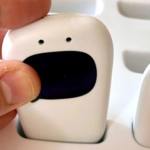
A hand placing a small, white, rounded device with a dark, speech-bubble-shaped display into a white charging tray.

4. Dock devices

When each child leaves for the day, press and hold button until the screen says “Stopped”. Place all devices back into the dock to process and charge.

A LENA charging station holding several white digital recording devices, each displaying a child’s name and a speech bubble icon.

5. Morning after: check status

After each LENA Day, check the network light first thing in the morning.

• Solid or blinking green? You’re on track!

• Blinking yellow? The built-in cellular connection is too slow. You need to connect dock to school Wi-Fi to process your data using the LENA Wi-Fi Connector app.

Important LENA Day Tips

  • Check processing status the morning after your LENA Day (see next page).
  • Only do one LENA Day per week
  • Record for at least 2 hours.
  • Child absent? Do NOT do a makeup day. They can participate on the next LENA Day. 

Tech Support

If you are experiencing issues with your dock or devices, always first check that the dock is plugged in and the devices are placed firmly into the dock. 

First, make sure all devices are pressed firmly into the dock until you hear a “click”. Devices cannot transfer data if not fully seated.

Device messages

Here are common messages you might see when data is missing, what they mean, and what to do.
White electronic device docked in a charging base, displaying the name “Liam O.” and a heart icon on its screen.

Wave

What it means: The device is sending its recording to LENA and/or charging.
What to do: Leave it in the dock with the dock plugged in. Still showing the wave 24 hours after LENA Day? Install the LENA Wi-Fi Connector app.
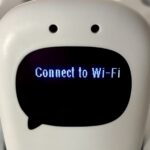
White device with a speech bubble screen displaying the text “Connect to Wi-Fi.”

Connect to Wi-Fi

What it means: The dock can’t get a strong enough cellular signal to send recordings to LENA. It needs your site’s Wi-Fi. The dock’s network light will be flashing yellow.
What to do: Install the LENA Wi-Fi Connector app and follow its steps. When the network light turns solid green, you are connected and data will process.
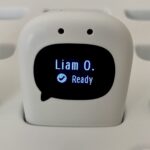
A white electronic device in a charging base, with a screen displaying “Liam O.” and “Ready” next to a checkmark icon.

Ready

What it means: This device is charged, assigned to this child, and ready for the next LENA Day.
What to do: On LENA Day, take it out of the dock, press and hold the button to start recording.

The LENA dock has built-in cellular connection, like a cell phone. At startup, it looks for a cell signal. It does not come connected to your school Wi-Fi.

If the dock light is • blinking yellow or devices are showing the wave icon for more than 24 hours, you need to connect the dock to your building or school Wi-Fi. Download the LENA Wi-Fi Connector mobile app and follow the instructions to connect.

Wi-Fi Connector App Screens
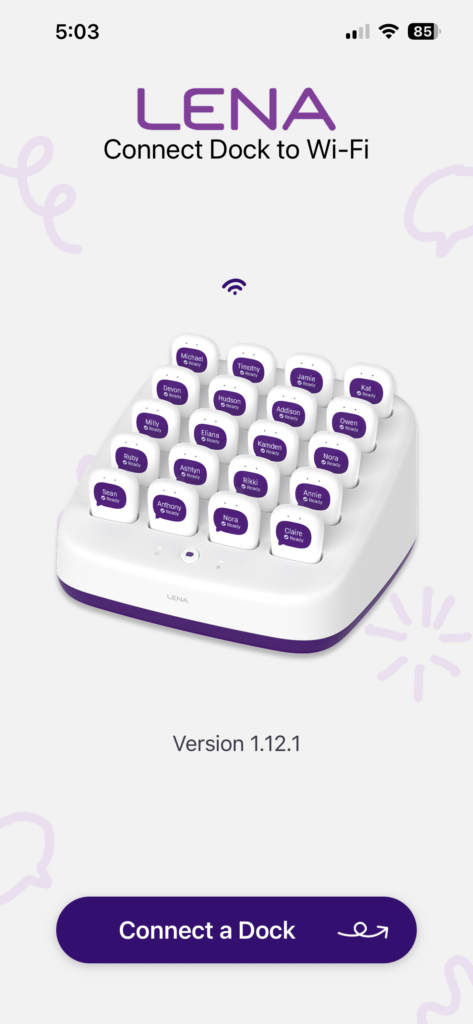
A Lena docking station holding multiple labeled interactive tiles, with instructions to connect the dock to Wi-Fi.
1. Launch the app

You will connect one dock at a time.
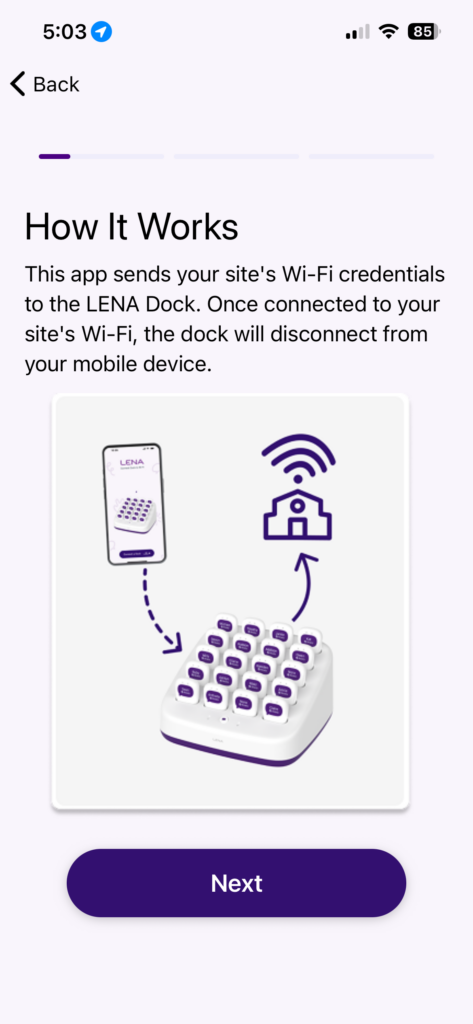
Illustration showing a mobile phone transmitting Wi-Fi credentials to a LENA dock, which then connects to a building’s Wi-Fi network.
2. Understand how it works

This app sends your site's WI-Fi credentials to the LENA dock. Once connected to your site's Wi-Fi, the dock will disconnect from your mobile device.
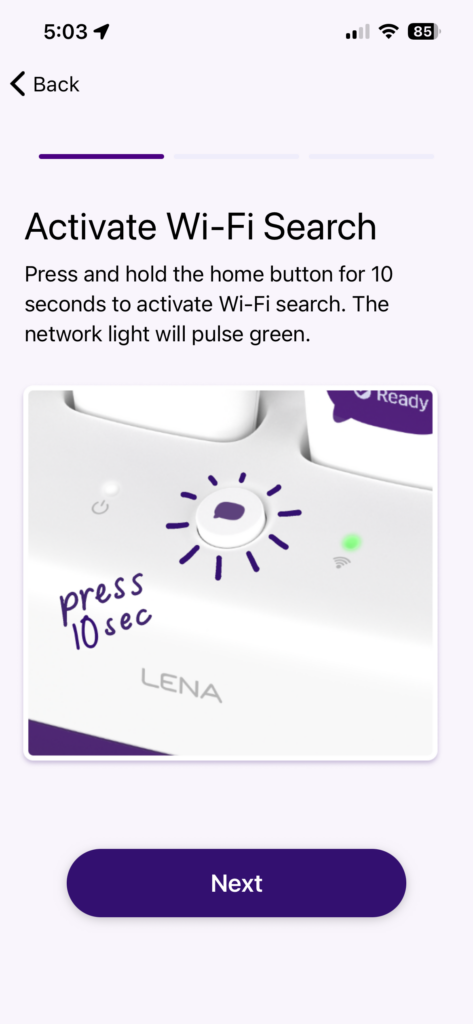
Illustration showing the home button on a white device being pressed for 10 seconds to activate Wi-Fi search, indicated by a green light.
3. Activate Wi-Fi search on the dock

You are essentially putting the dock in "pairing mode."
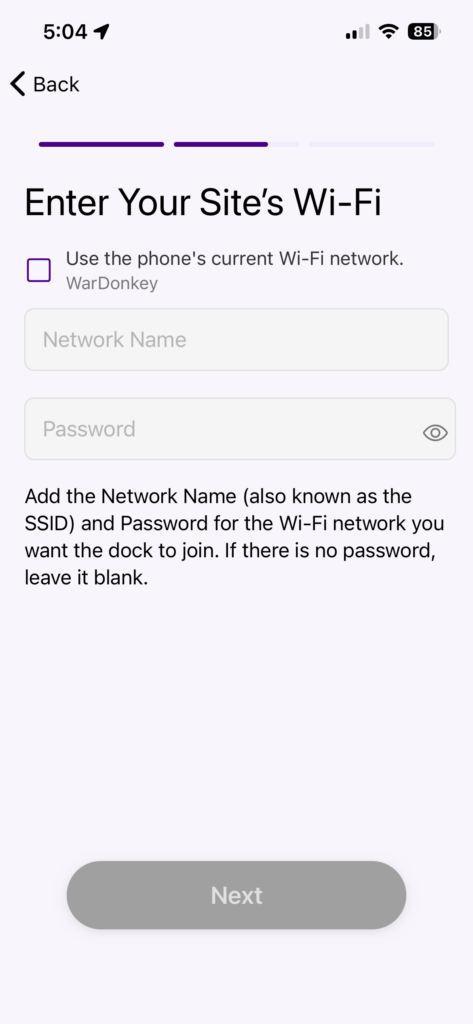
Screen for entering Wi-Fi network name and password to connect a dock, with an option to use the phone’s current network and a Next button.
4. Enter your Site's Wi-Fi credentials.

⚠️Network names and passwords are case-sensitive. TYPE CAREFULLY! This is the step where we see the most mistakes.
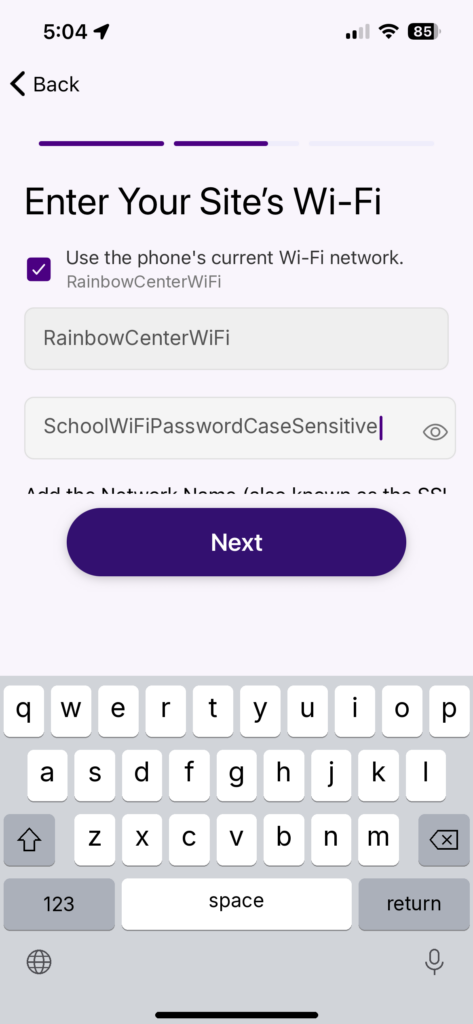
Mobile app screen for entering Wi-Fi network name and password, with a keyboard visible at the bottom.
5. If the phone or tablet you're using for this step is already connected to your school Wi-Fi, you can automatically fill in the Network Name.

This helps prevent typos. You still need to enter the password exactly.
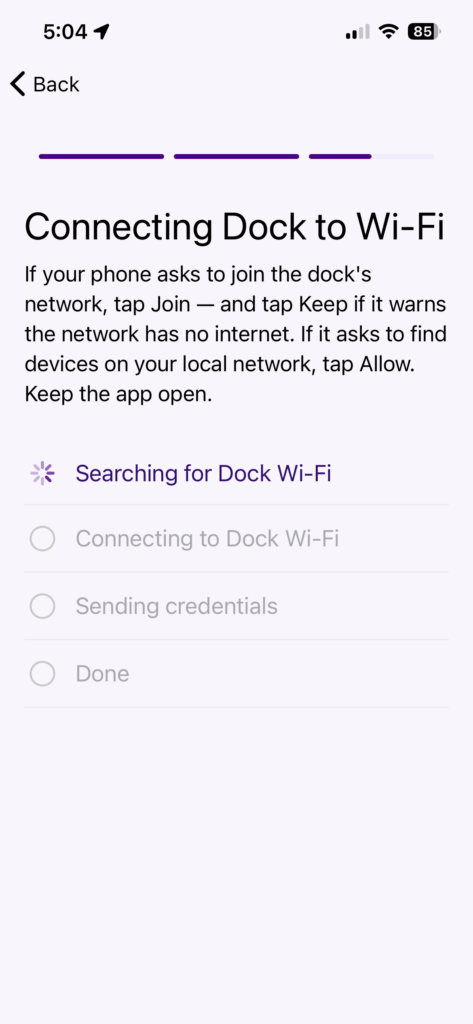
Instruction screen for connecting a dock to Wi-Fi, showing a progress list with “Searching for Dock Wi-Fi” currently active.
6. Connecting Dock to Wi-Fi.

The app will automatically scan for the dock.
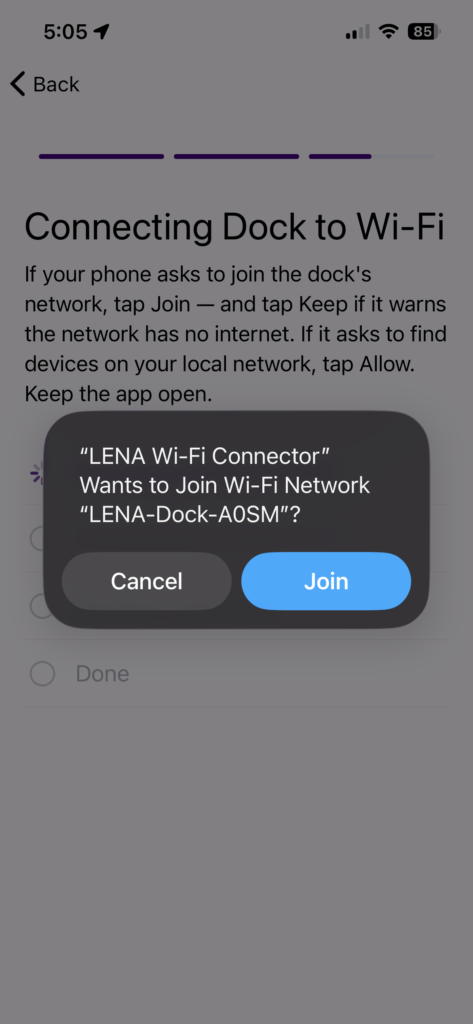
A system alert prompt asking if LENA Wi-Fi Connector can join the Wi-Fi network LENA-Dock-A0SM, with options to Cancel or Join.
7. In some cases you may need to tap "Join"

for the first step, telling your phone or tablet it's okay to connect to the dock temporarily. Some phones or tablets will not show this and that's okay!
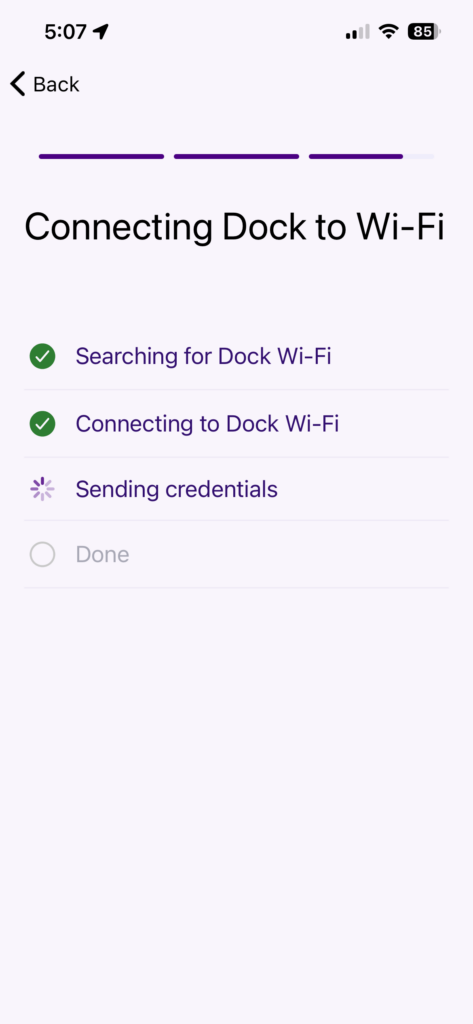
A screen showing a Wi-Fi connection progress list with “Searching for Dock Wi-Fi” and “Connecting to Dock Wi-Fi” checked, and “Sending credentials” currently in progress.
8. Connecting Dock to Wi-Fi.

The app will automatically scan for the dock, connect to the dock, send the school's Wi-Fi credentials, and then disconnect your phone or tablet.
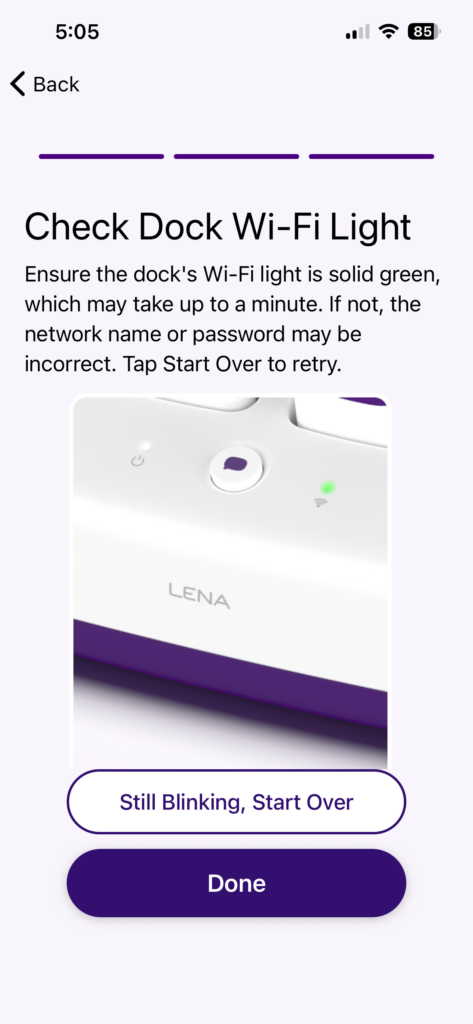
Close-up of a Lena dock with a solid green Wi-Fi status light illuminated.
9. Check Dock Wi-Fi Light.

Ensure the dock's Wi-Fi light is solid green which may take up to a minute. If not, the network name or password is likely incorrect. Tap "Still Blinking, Start Over" to try again.

The LENA dock has built-in cellular connection, like a cell phone. At startup, it looks for a cell signal. It does not come connected to your school Wi-Fi.

If the dock light is • blinking yellow or devices read “Connect to Wi-Fi”, even after you paired it to Wi-Fi using the LENA Wi-Fi Connector mobile app, it’s worth trying again. It’s possible your network password changed or your school’s Wi-Fi went offline. Use the LENA Wi-Fi Connector app to reconfigure school Wi-Fi.

If it fails after trying again, contact LENA support using the form or phone number below.

Each child is assigned a device. Each device belongs to a specific classroom’s dock and should stay in that dock throughout your five weeks. If you place the device in another room’s dock, it will unassign the device.

In order to reassign the device back to the child, place it into the correct classroom’s dock.

Add a new child

  1. Make sure you have a spare unassigned device (“A” + pencil icon) in the dock.
  2. Ask your coach or director to add the child to your classroom in LENA Online.
  3. Press the dock button. The dock will assign the spare device to the new child.

Move a child

  1. Leave the child’s device in the original room’s dock.
  2. Ask your coach or director to move the child in LENA Online.
  3. Dock will unassign device after child is moved, making it available for another child. If child was moved to a different room, that room dock will assign a spare device to the child.

DO NOT SIMPLY MOVE THE DEVICE TO THE NEW ROOM’S DOCK. It will not work.

If the network light on your dock is • flashing red, unplug the dock, wait 30 seconds. Then, plug it back in. 

If it’s still flashing red, your dock has an issue that needs LENA’s help. Complete the Dock Flashing Red Support Form and someone will be in touch. 

Need additional help? Complete the form below and we’ll be in touch.